The retro edit
Can you play a retro TV console on a computer monitor?
Yes. Our TV consoles do not need a television, they need a screen with an HDMI input, and most computer monitors have one. A game stick is a small computer in its own right, so it does not connect to your PC at all. It connects to the display, and your PC can stay switched off.
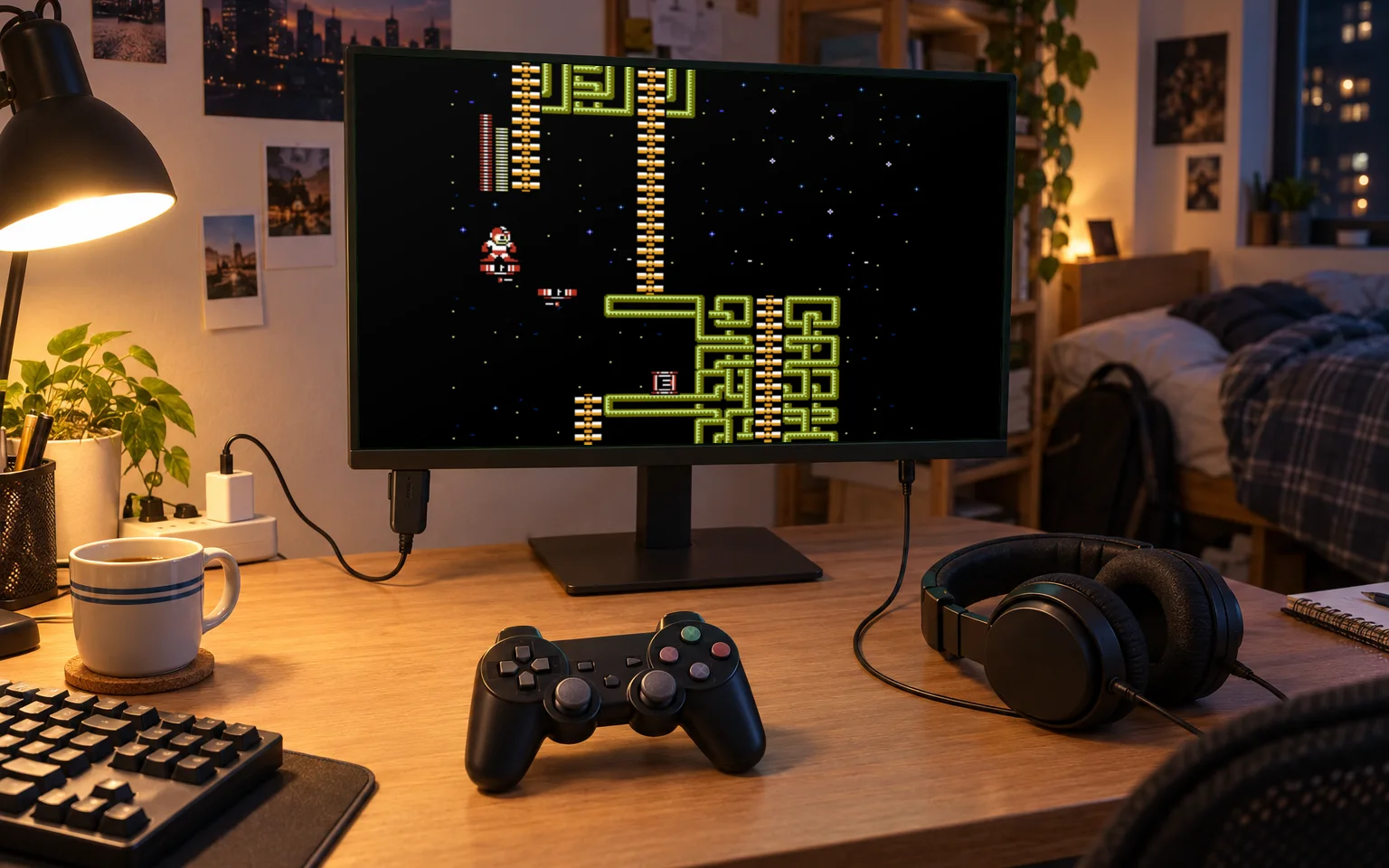
That makes a monitor a good home for a retro console in a bedroom, a student room, an office or anywhere the TV is usually taken. There are three things to check first: sound, power and the type of input.
Sound
This is the one that catches people out. The console sends sound over HDMI along with the picture, and a TV plays it through its speakers. Many monitors have no speakers at all.
- If your monitor has built-in speakers, sound works as it would on a TV.
- If it has a headphone jack, which many do, plug headphones or a pair of desk speakers into it. The monitor passes the HDMI sound through.
- If it has neither, an HDMI audio extractor sits between the console and the monitor and gives you a headphone or speaker output. They are small and inexpensive.
Power
Game sticks take power over USB. Many monitors have USB ports, but on a lot of models those ports only work while the monitor is connected to a computer by a USB cable. If the stick does not start from the monitor's port, use a USB phone charger instead. The G99 needs a 5 V 2 A USB-C supply, which most phone chargers provide.
HDMI or DisplayPort
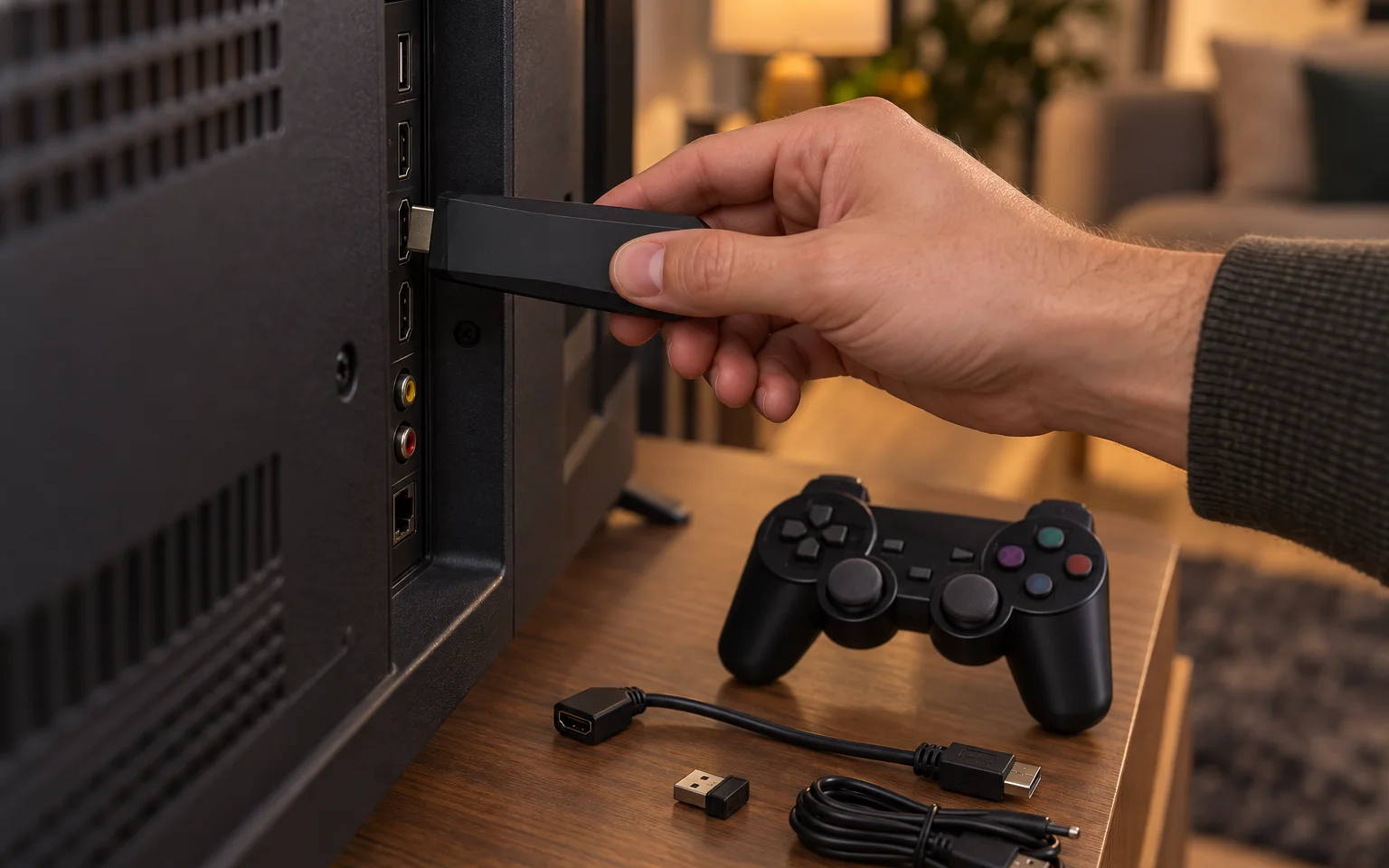
Check the ports on the back of the monitor. If there is an HDMI port, plug straight in, using the HDMI extension in the box if space is tight.
If the monitor only has DisplayPort, a simple cable will not work, because the signal has to be converted in that direction. You need an active HDMI to DisplayPort adapter, which usually draws its own power over USB. It works, but at that point a second-hand monitor or a small TV with HDMI may be the simpler buy.
The picture
Our TV consoles output at up to 4K and adjust to the screen they are connected to, so a 1080p or 1440p monitor is fine. If you see no picture, select the right input in the monitor's menu, then try a different HDMI cable.
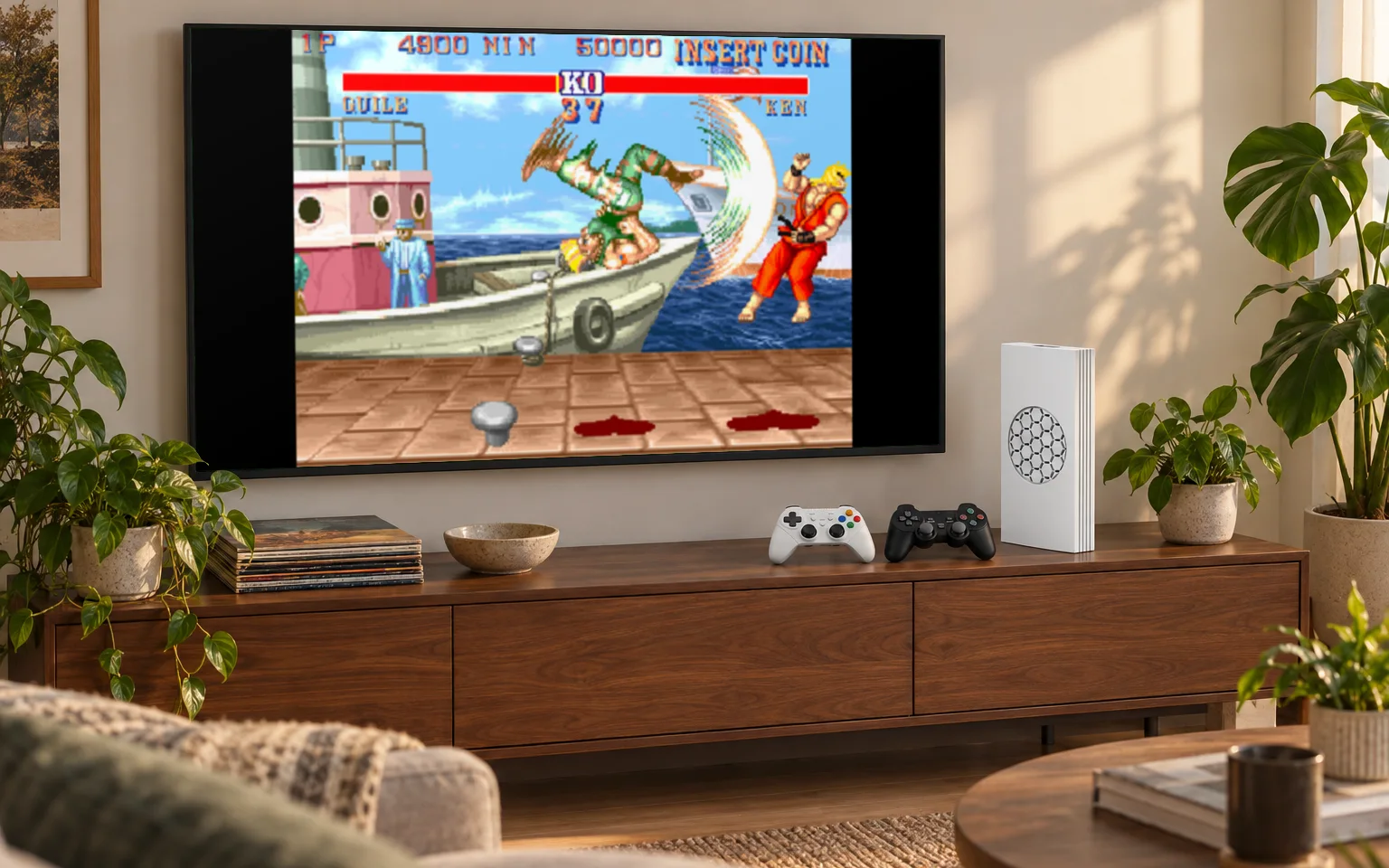
Most monitors are widescreen, and classic games were made for 4:3 televisions, so expect bars either side. That is the correct shape, not a fault. A useful side effect of a desk setup: monitors generally react faster than TVs because they do less picture processing, so controls often feel tighter than in the living room.
Which console suits a desk
The Game Stick Lite 4K is the neatest option: it hangs off the HDMI port and disappears. The X8 TV Game Stick does the same and adds Android apps, which is handy on a screen that is not a TV. The G99 is a small box that sits beside the monitor and gives you the widest range of systems.
What about the controllers on a PC?
The controllers pair with the console's own USB receiver. One of our buyers reports that the wireless controllers also work when the receiver is plugged into a PC, but we do not promise that, since it depends on the computer and the software you run.
For the full walkthrough of connecting a stick, including the fixes for no picture and slow controls, read how to set up a retro game stick.