The retro edit
How to set up a retro game stick on your TV
To connect a game stick to a TV, you need HDMI, suitable power, the controller receiver and compatible storage prepared for your exact model. Games are not supplied. This guide covers the connections and common picture or controller problems once your system and legally obtained files are ready.
Before preparing a new card
Check the exact console model and hardware revision first. If the console starts from a memory card, a blank card needs the matching system image before it can boot. Use the manufacturer’s instructions and files for that model, not a package for a similarly named console. Check the product page for supplied accessories.
If you do not have the correct instructions, contact us with the model name before buying or formatting a card. Games are not supplied. Add only files you have the right to use.
Before you start
Look at the back or side of your TV and find a free HDMI port. Note its label, usually HDMI 1, HDMI 2 or similar, because you will need to pick it on the TV later. If there is a USB port nearby, note that too.
1. Plug in the stick
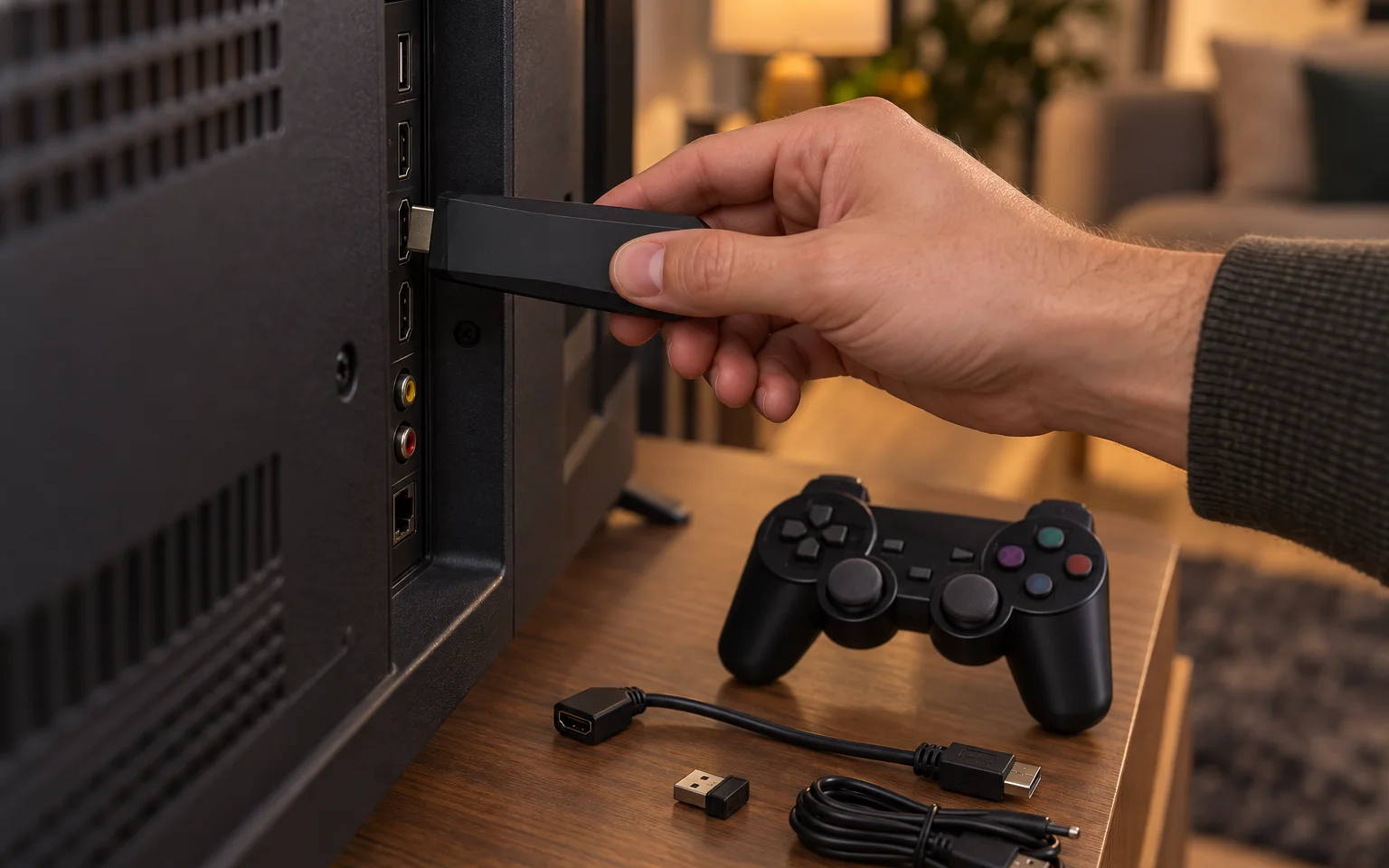
Push the stick into the free HDMI port. If it does not fit because of the wall, a cable or a neighbouring plug, use the HDMI extension that comes in the box. The extension also brings the stick out from behind the TV, where the metal back of the set can get in the way of the wireless controllers.
On the X8, the same job is done by the included HDMI adapter. The G99 is a small console rather than a stick, so it sits on the TV cabinet and connects with the HDMI cable in its box.
2. Give it power
Connect the USB power cable. Many TVs have a USB port that can power the stick, and that is the tidiest option. Some TV ports do not supply enough power, though, and the sign is a stick that restarts or never starts. If that happens, plug the cable into an ordinary USB phone charger instead.
The G99 takes power over USB-C and needs a 5 V 2 A supply, which most phone chargers provide.
3. Connect the receiver and controllers
The two wireless controllers talk to the console through a small USB receiver. Make sure it is plugged into the stick, then switch the controllers on. If one does not respond, check its power first.
4. Choose the input on your TV
Turn on the TV and choose the HDMI input you used. A compatible, correctly prepared system should reach its menu. If it does not, check power and the exact model’s system-card requirements before replacing cables or formatting any card.
The X8 has two systems: EmuELEC for games and Android 12 for apps and video. Its remote control takes two AA batteries, which are not included, and the IR extension cable lets the remote work even when the stick is hidden behind the TV.
5. Find a game
Add only your own legally obtained files, using the folders and formats required by the system. Start with one compatible file to check that storage and controls work, then add more. If the system has favourites, use them to keep a short list of the games you actually play.
To leave a game and return to the menu, the Game Stick Lite 4K uses a button combination on the controller. One of our buyers describes it as pressing the two buttons in the middle together. The printed manual in the box shows the exact combination for your model.
6. Switching off
Return to the menu before you unplug anything or turn off the power at the wall. Cutting power in the middle of a game can interrupt a save, and on consoles that keep their system on the memory card it can damage the card. Our guide to memory cards explains how to back one up.
If something is not right
No picture
Check the TV is on the right HDMI input, then try another port. If nothing appears at all, the stick may not be getting enough power: move the USB cable from the TV to a phone charger.
The picture is cut off or stretched
Classic games were made for square-ish 4:3 televisions, so black bars at the sides are normal. If the edges of the menu are cut off, look in your TV's picture settings for a size option called something like Fit to screen, Just scan or 1:1, and choose it.
The controls feel slow
Most modern TVs process the picture to make films look smoother, and that adds a delay you can feel in games. Switch the TV to its Game mode, usually found in the picture settings. It is the single biggest improvement you can make. If a controller still feels unreliable, use the HDMI extension so the stick sits clear of the TV.
Next
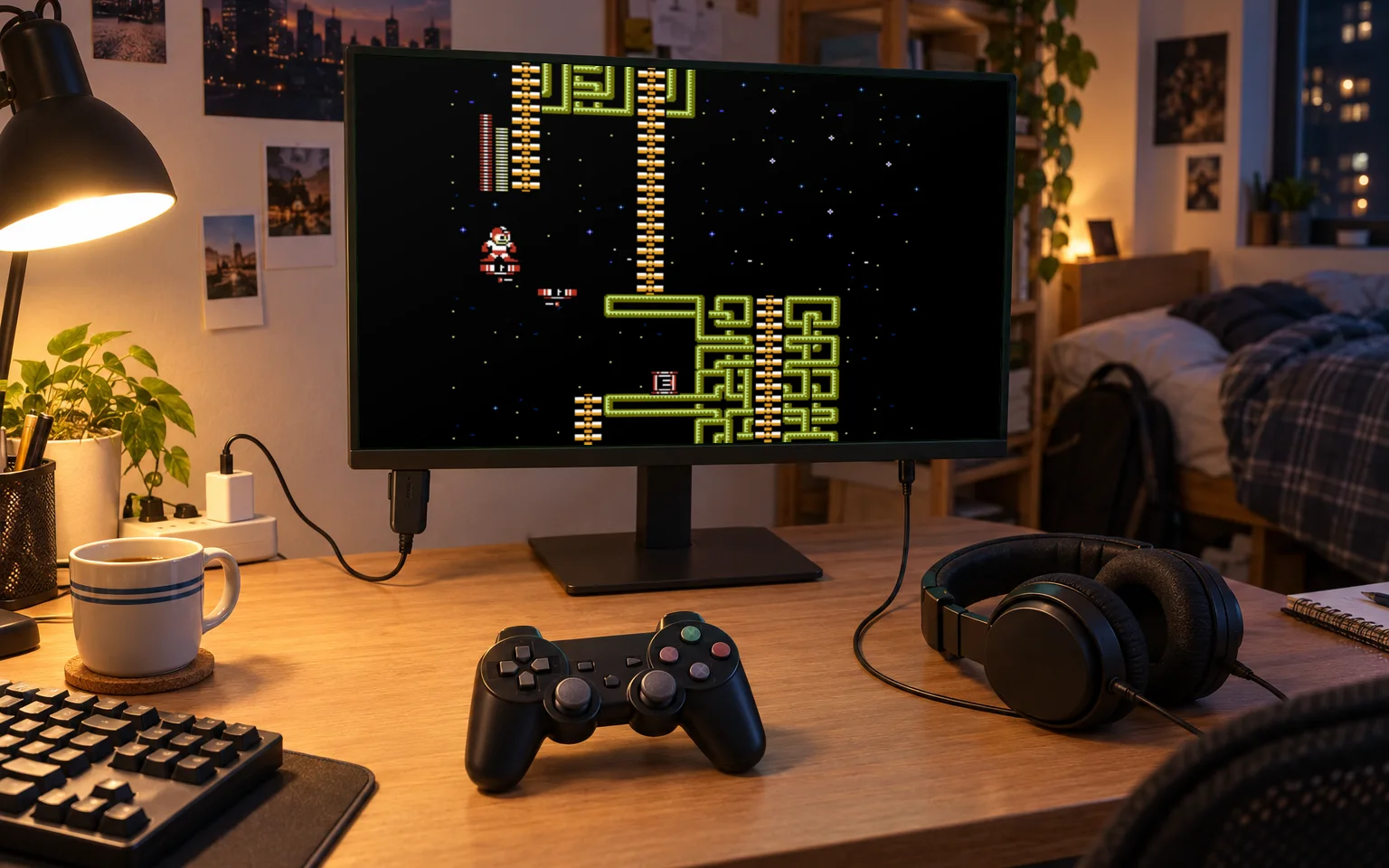
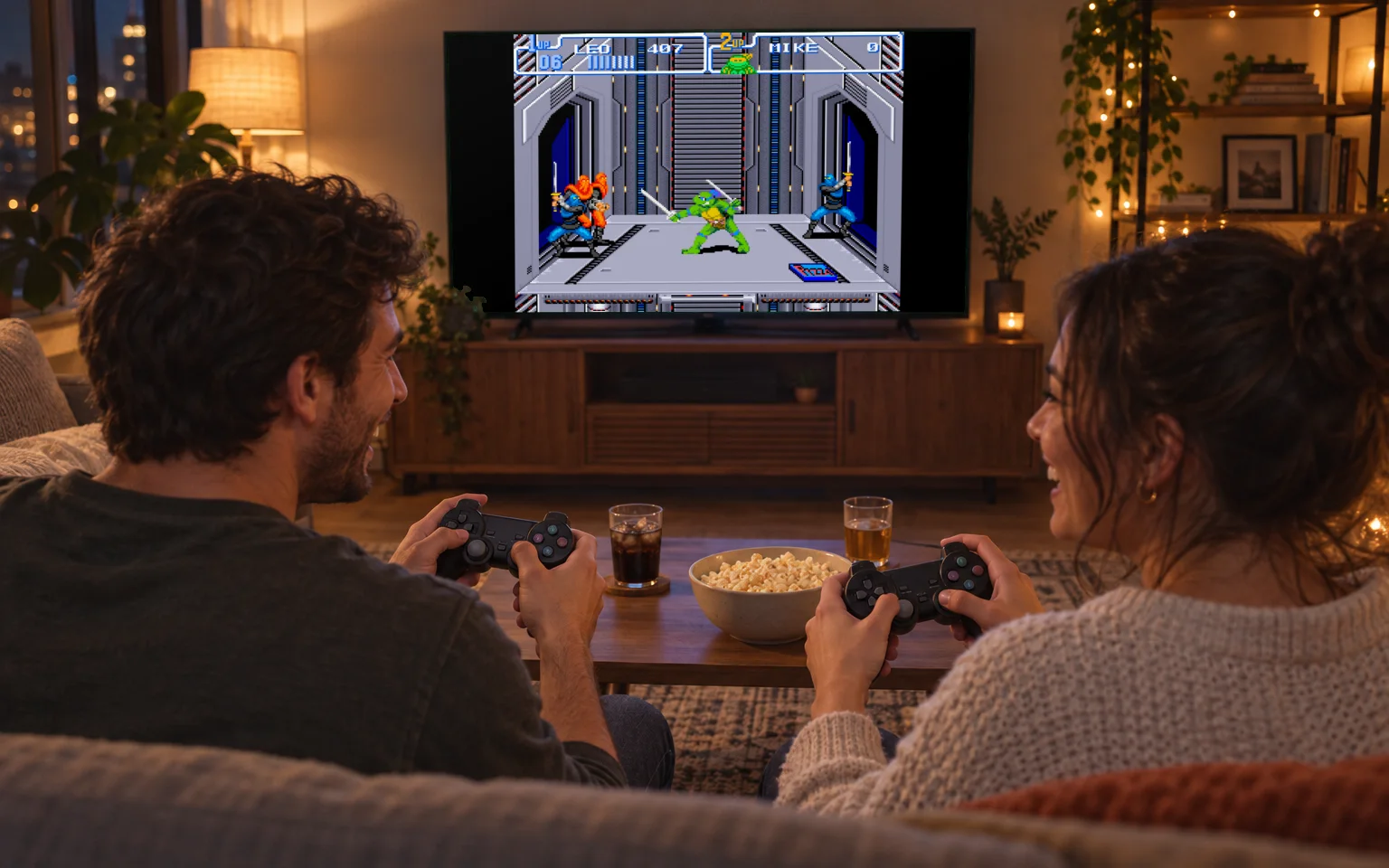
With the stick running, the obvious next step is a second player. Our guide to hosting a two-player game night covers which kinds of games to start with. And if your TV is usually busy, the stick works on a computer monitor too, which we cover in using a monitor instead of a TV.